
Workflow deep-dive
Turn a Gap into a Paid Visit
How do I fill a hole in my schedule?
A hole in your schedule doesn't have to stay empty. The self-scheduler fills most gaps on its own, but when you'd rather not wait, you can go hunting: filter your client list for who's due, flip to the Client Map to see who's nearby, and reach out. A few minutes later, the hole has a name on it.
This workflow touches: Calendar and ItineraryAdvanced FilteringTagsClient Map
How it works, step by step
-
A gap opens in your day.
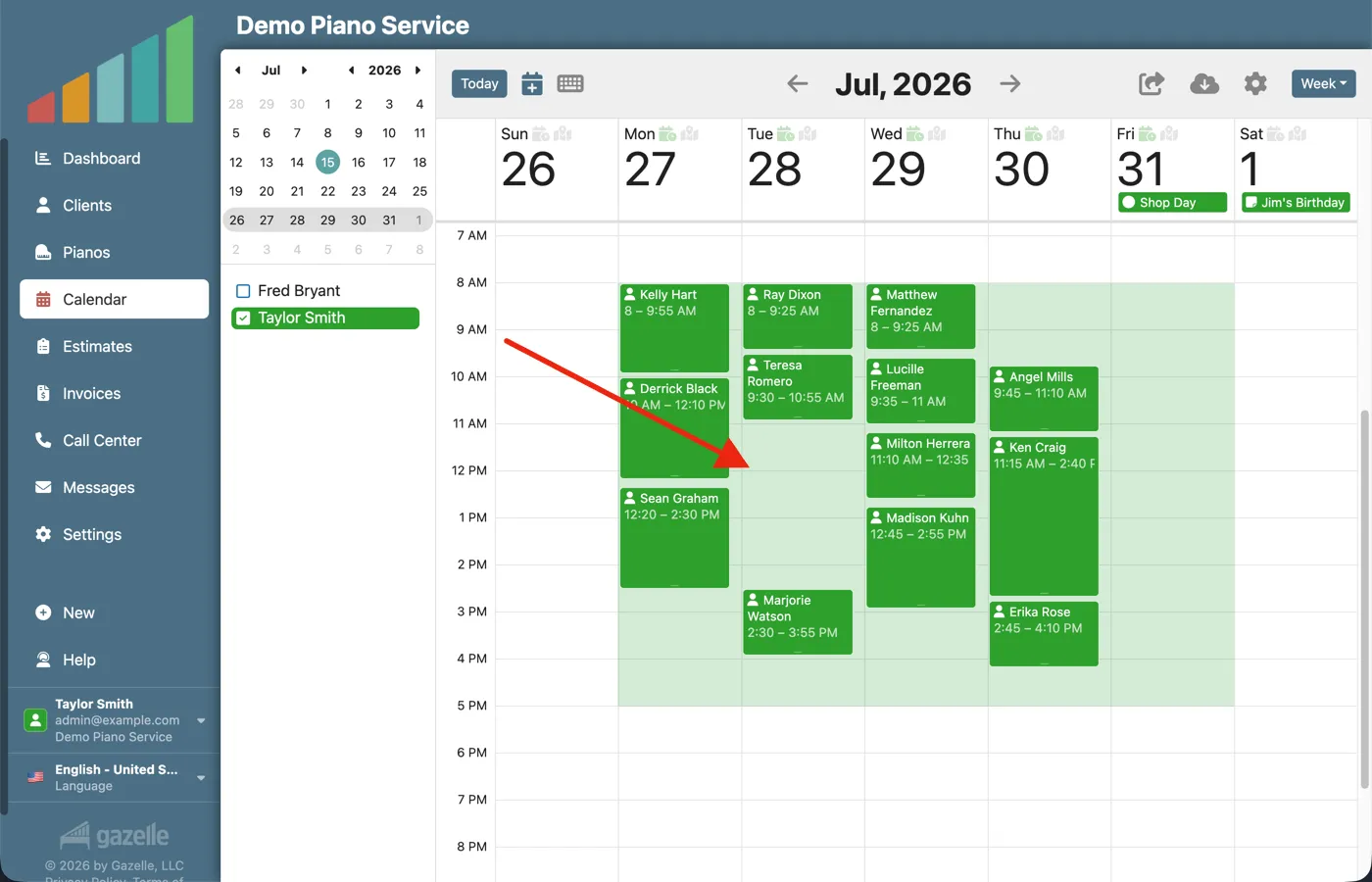
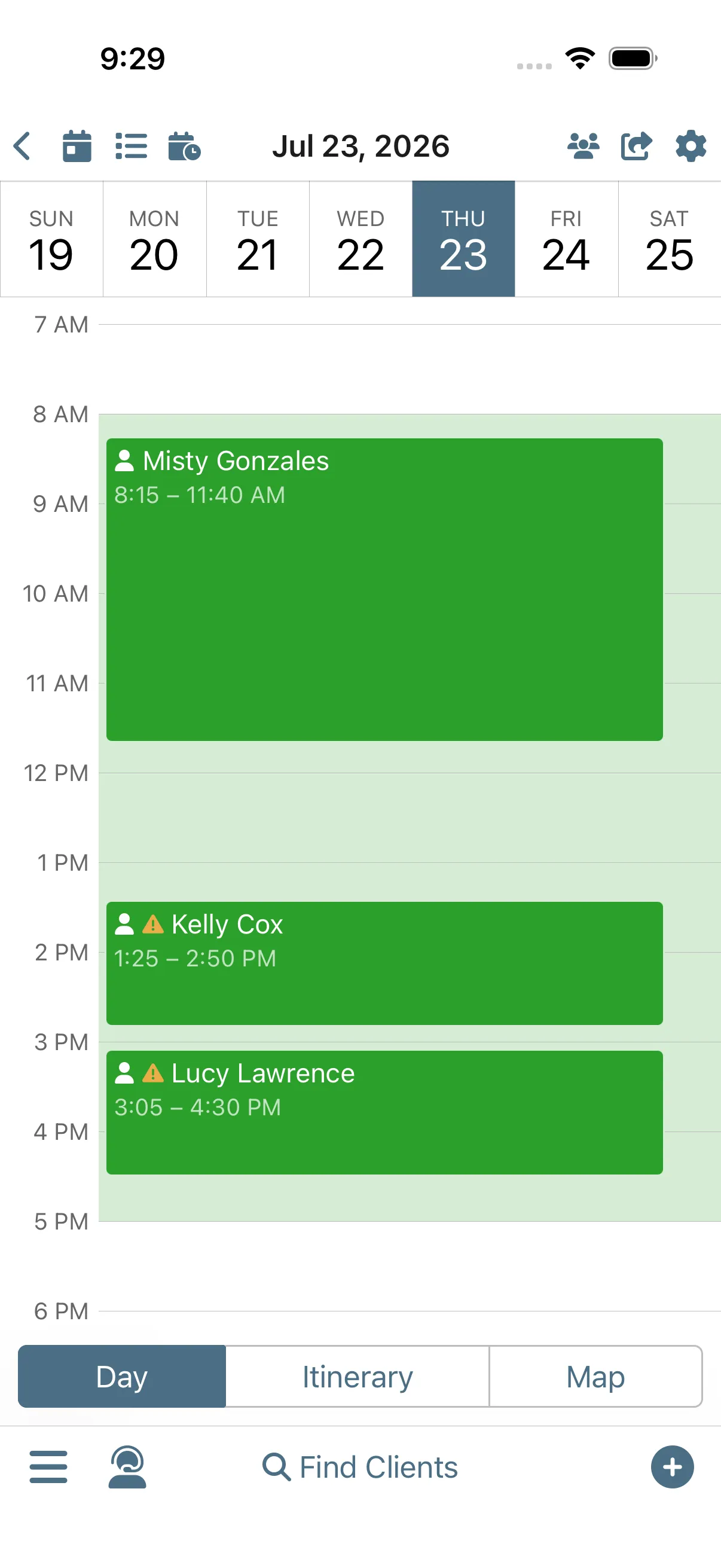
That hole in your schedule is recoverable. Maybe a client canceled. Maybe the week just came up light. Normally you'd let the self-scheduler fill it, but you're feeling impatient. So you open Gazelle and go find its replacement.
Calendar and Itinerary
-
Filter for who's due.
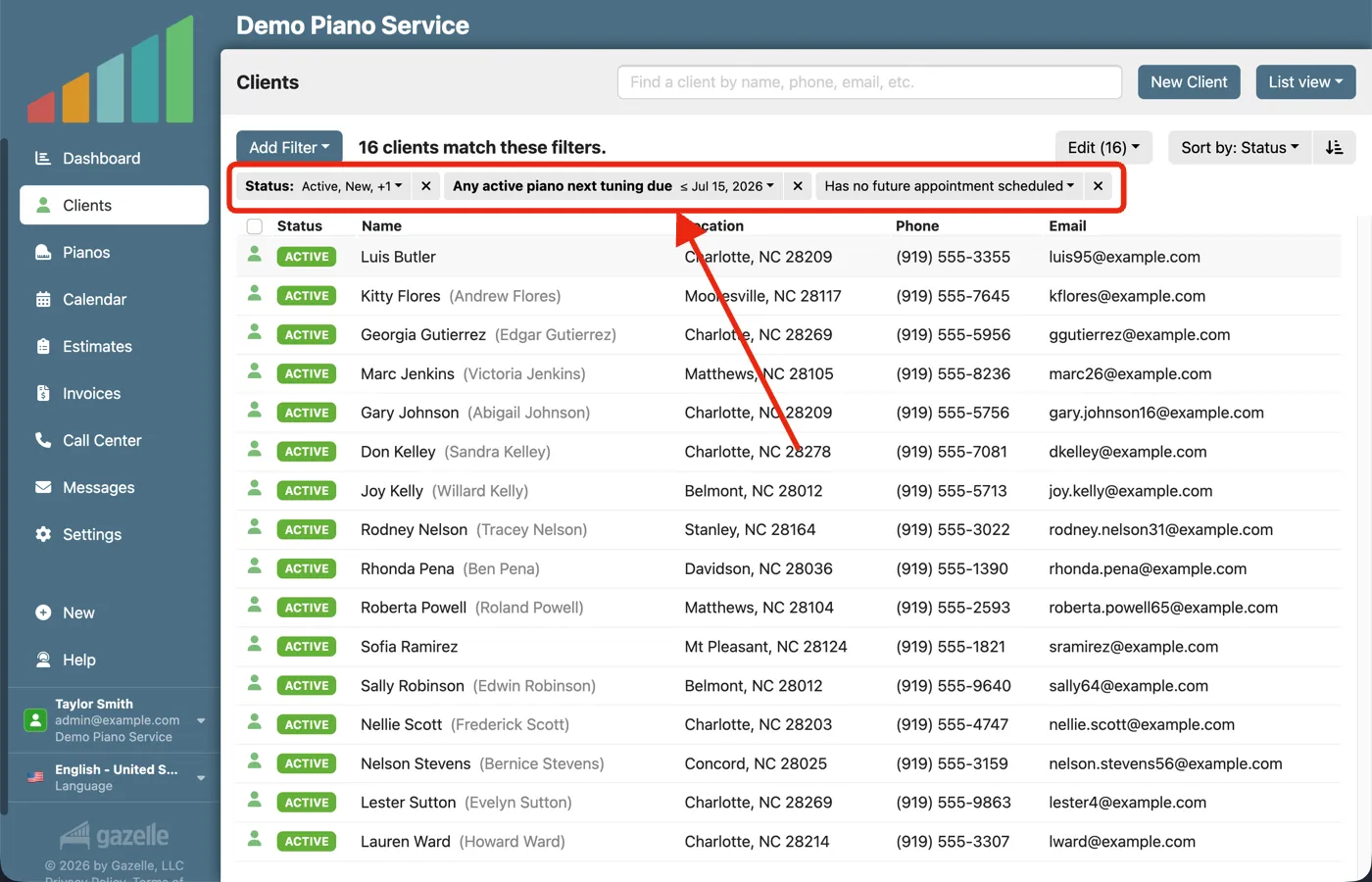
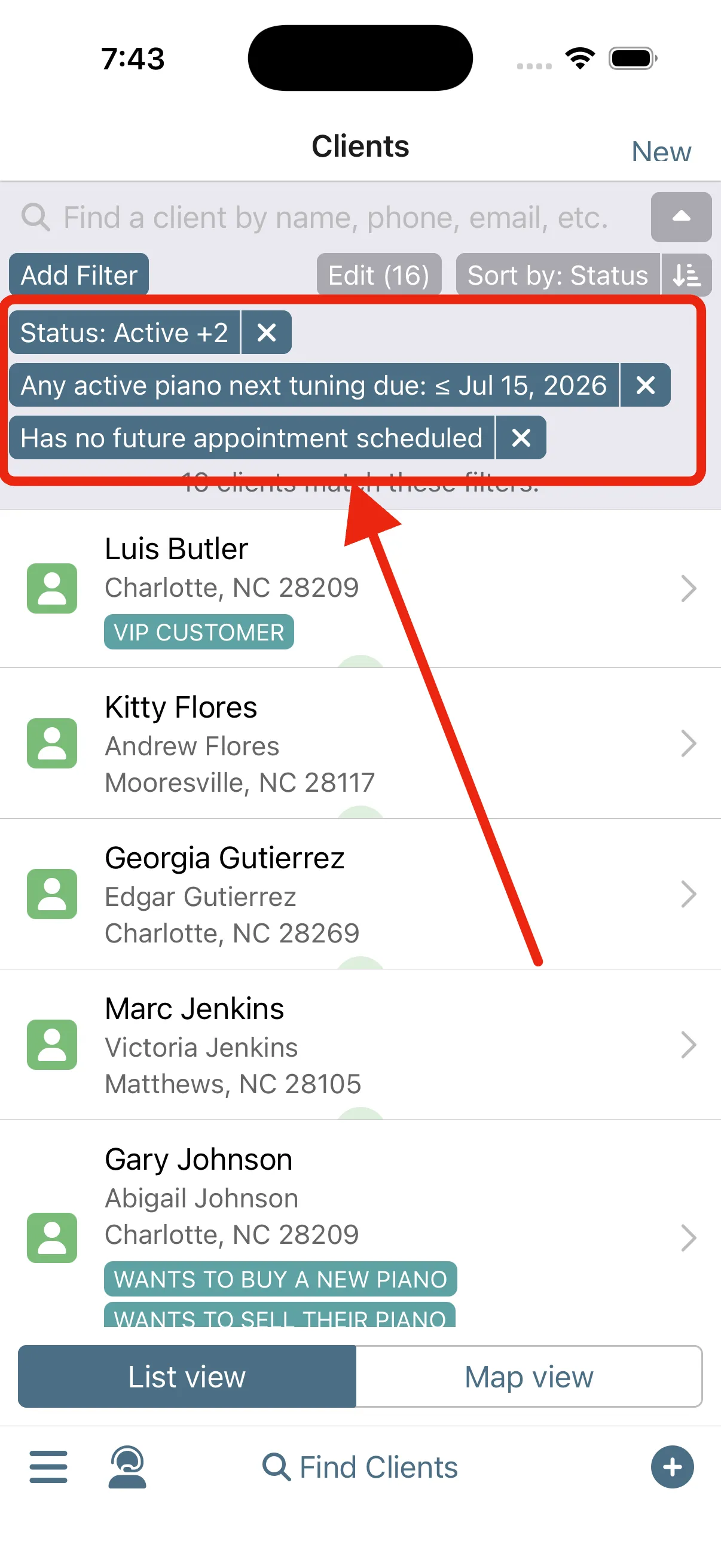
Start the hunt in your client list. Filter for who's due for service, or pull up everyone with your waitlist tag: the clients who asked to be called when a slot opened up. A minute of filtering leaves a short list of people with a reason to say yes.
Advanced FilteringTags
-
See who's nearby.
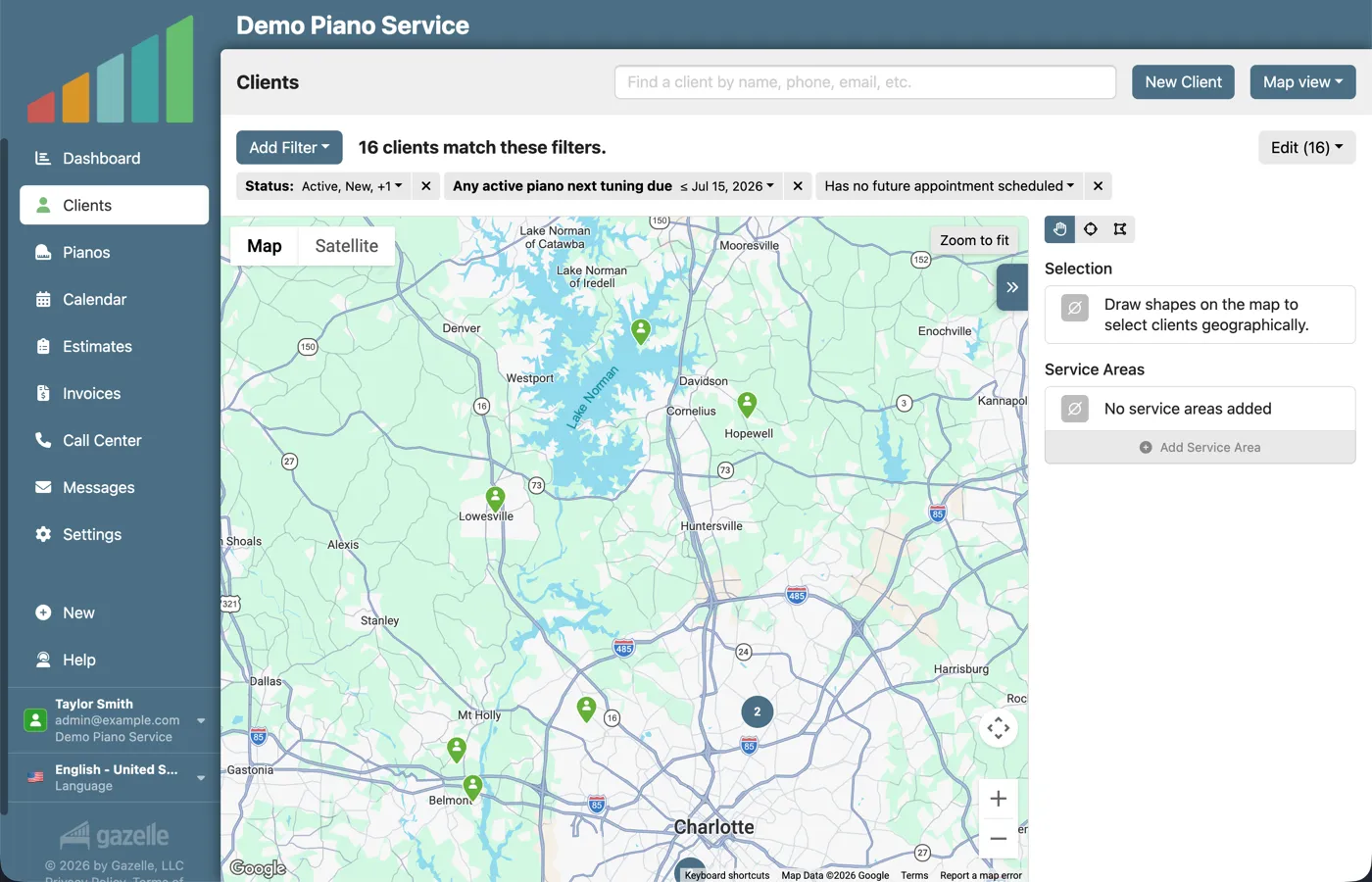
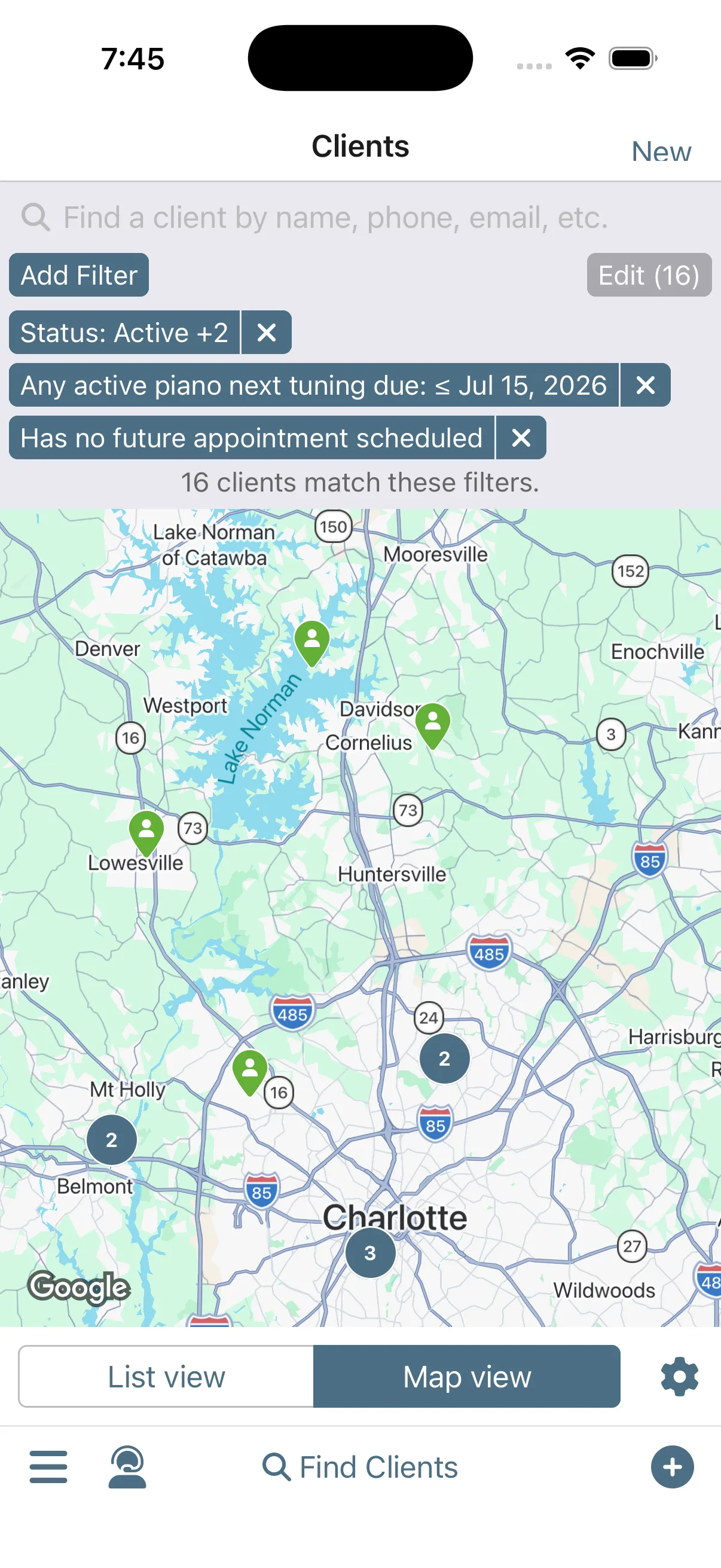
A short list is good; a short list down the street is better. Toggle the filtered list over to the Client Map and the same clients appear as pins, some of them sitting right around appointments you already have. The filters carry across, so the map only shows people worth contacting.
Client MapAdvanced Filtering
-
Reach out directly.
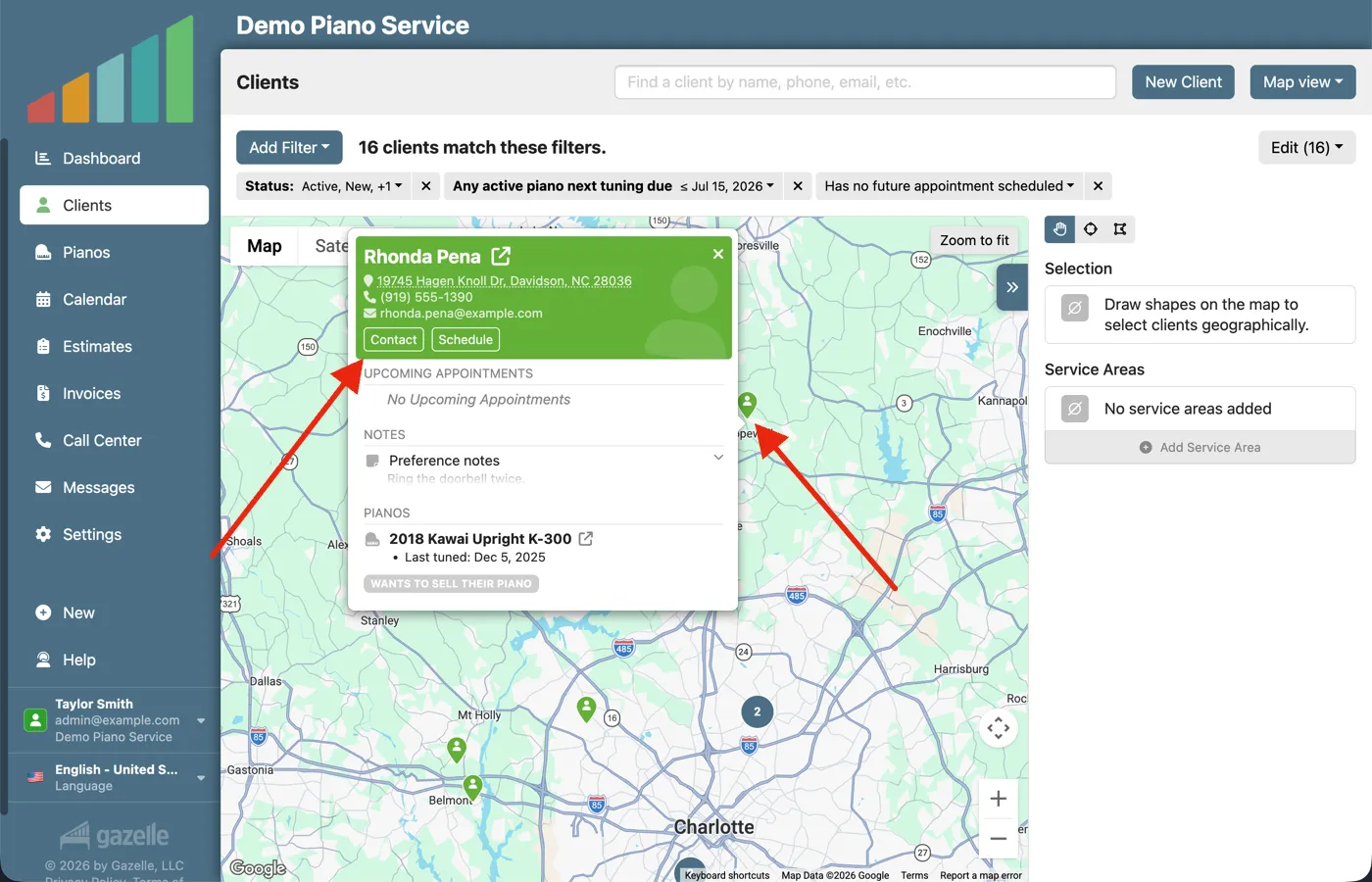
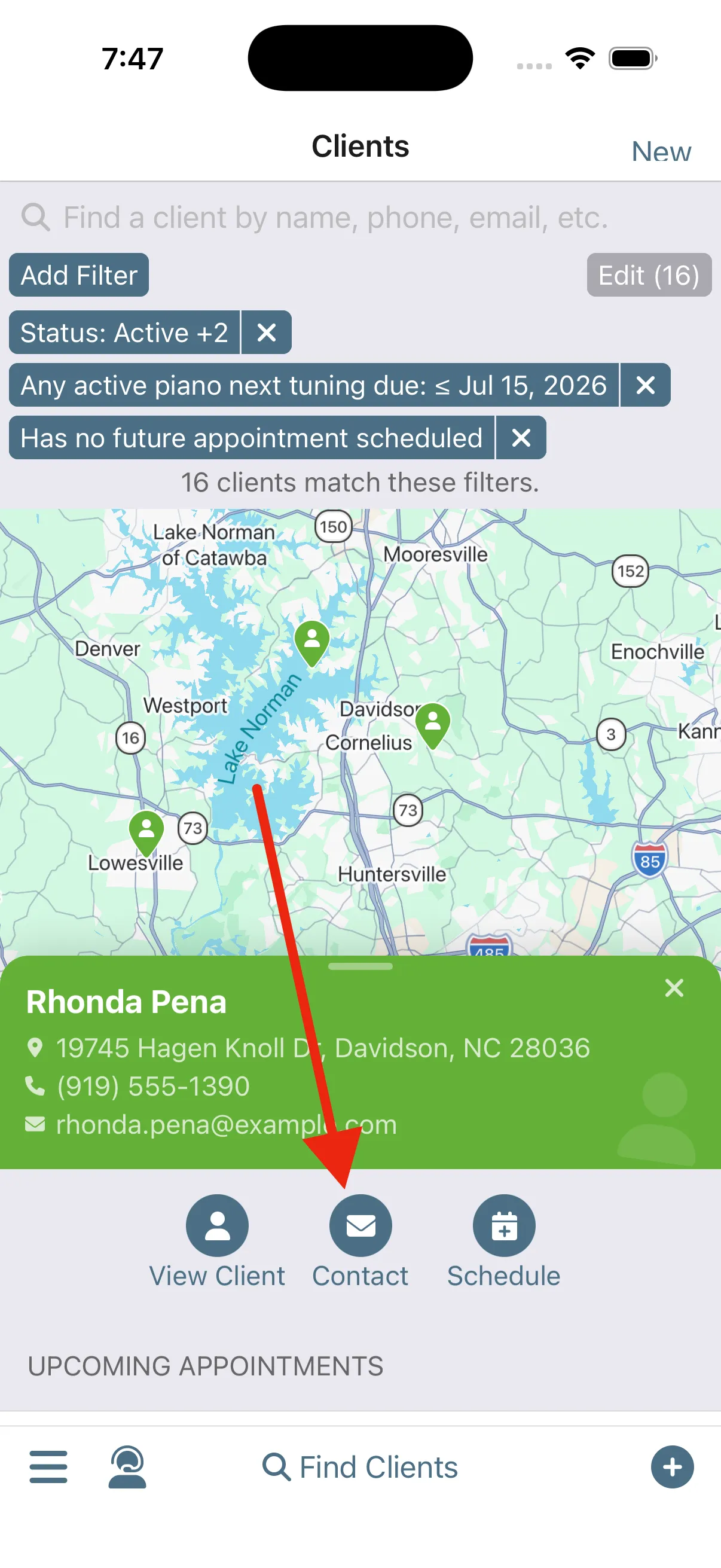
Make contact straight from the map. Tap a pin and everything you need is right there: contact info, their pianos, when each was last serviced, your notes. Call or text on the spot, and if five clients sit near that gap, work down the list until somebody says yes. One conversation and the hole is spoken for.
Client Map
Run this workflow on your own clients.
Every feature this workflow touches is included in your free trial. Free for 30 days, cancel anytime.
Features used in this workflow: Calendar and ItineraryAdvanced FilteringTagsClient Map
Related workflows
More Service Calls, Fewer Miles
Tell Gazelle where and when you work, and Smart Routes ranks every open slot by the driving it actually adds, so bookings land on days you already have.
Resurrecting Ghosted Clients
Filter to everyone who's slipped away and message them all at once, each with their own booking link.
Keep Clients Coming Back
Complete an appointment and Gazelle starts the countdown to the next one: reminders that keep following up until the client books, and a cycle that resets with every visit.