
Workflow deep-dive
Make Your Accountant Happy
How do I get my invoices and payments into QuickBooks without entering them twice?
Gazelle handles your invoices. Stripe handles your card processing. Your bank handles your money. QuickBooks handles your bookkeeping. Gazelle synchronizes the data between them, so what lands in QuickBooks matches what actually happened: taxes mapped, payments linked, payouts itemized with the fees broken out. Your books are current before you're home.
This workflow touches: InvoicingPayment ProcessingAccounting IntegrationsNotifications
How it works, step by step
-
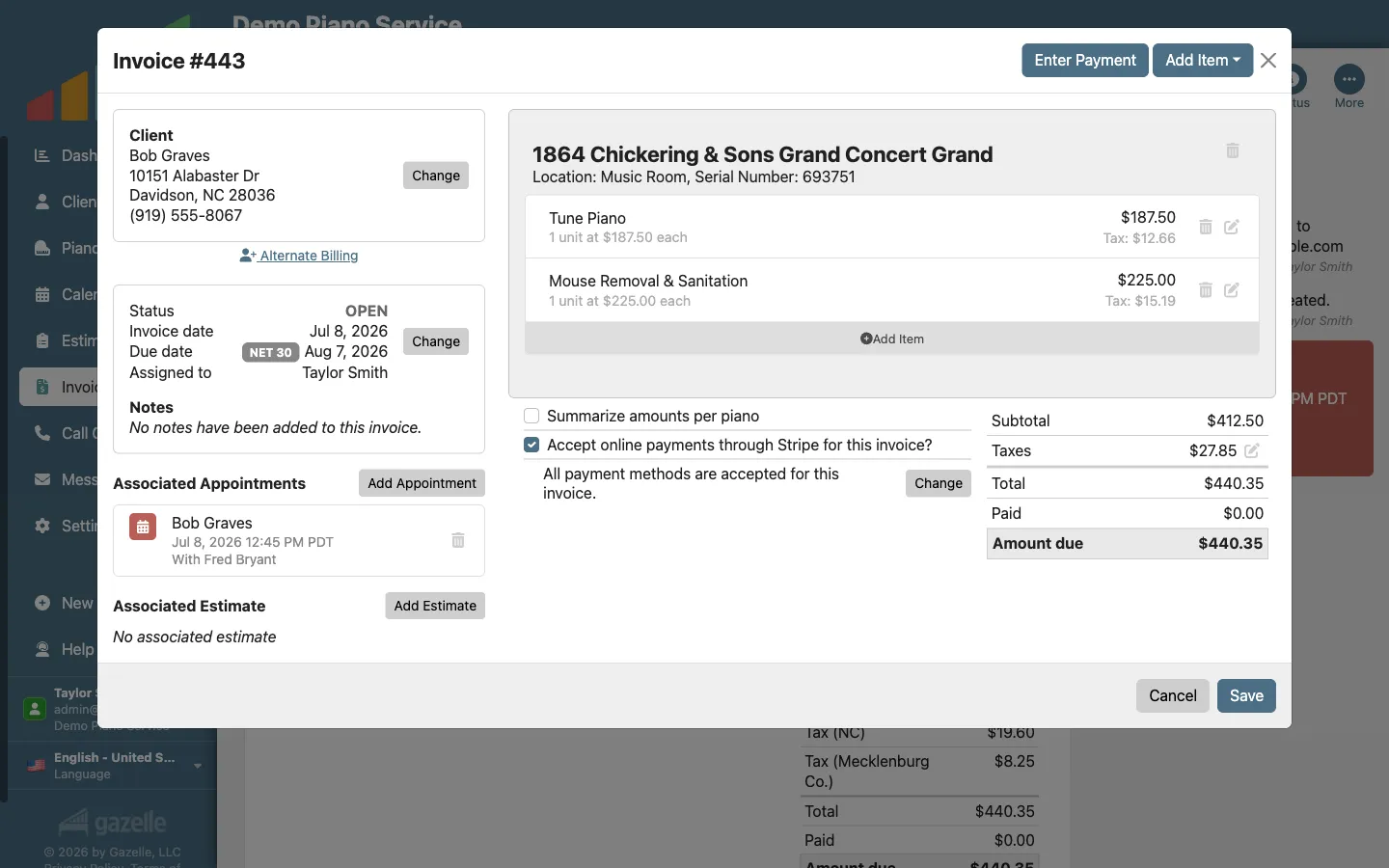
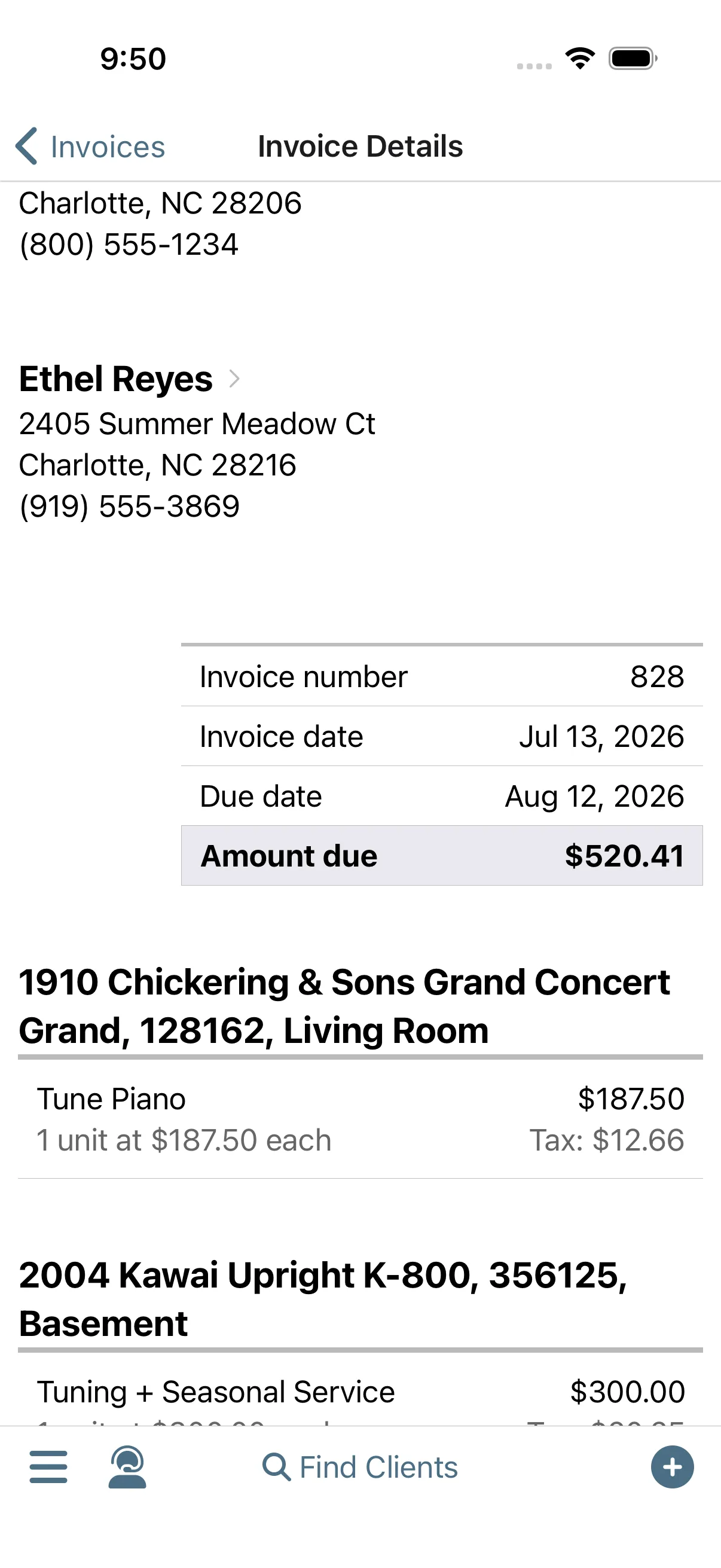
Invoice from the appointment.
Your books start at the appointment. Complete the visit and one button turns the services you performed into an invoice, priced from your service list with the taxes already calculated. Everything QuickBooks will receive later starts as this record.
Invoicing
-
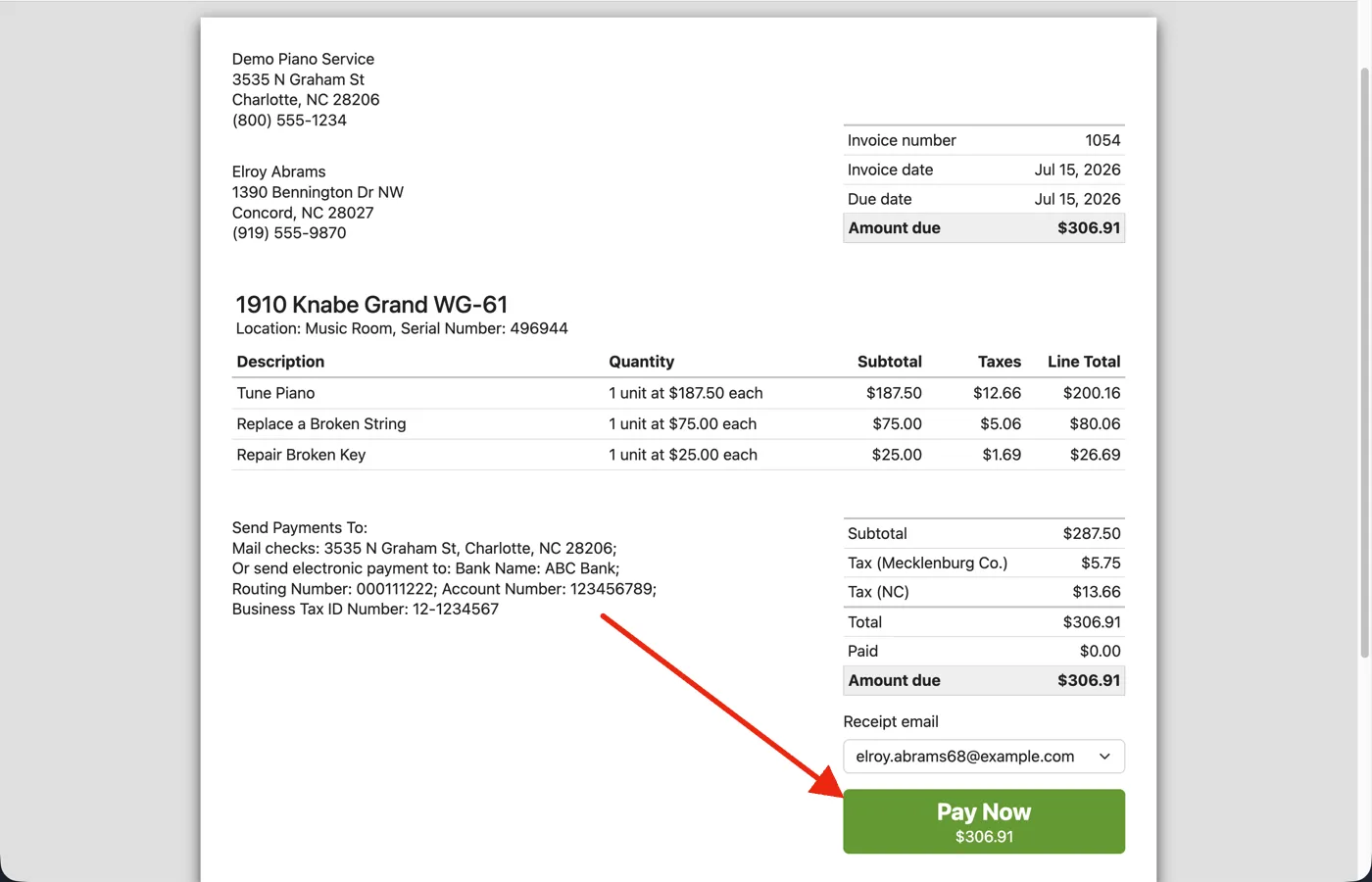
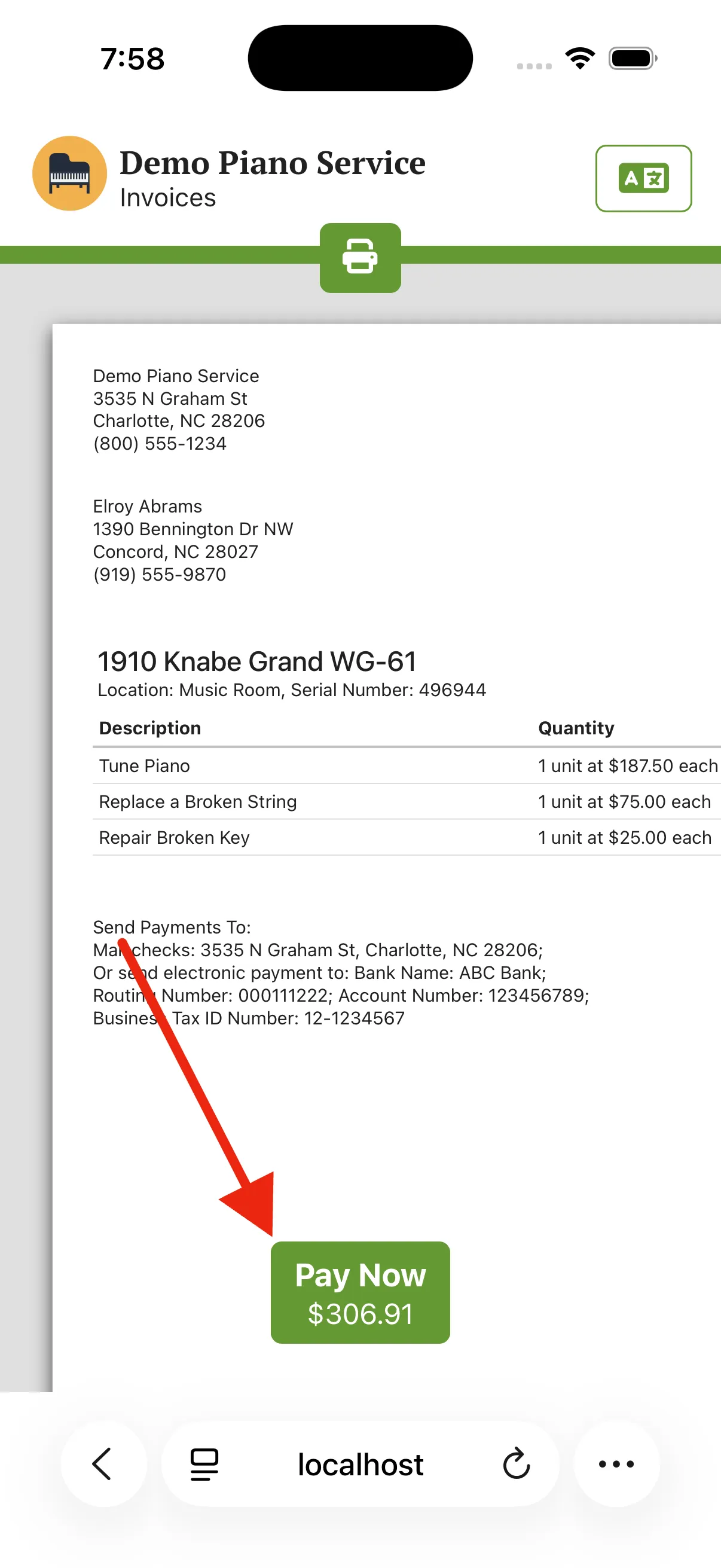
Get paid online.
Clients can pay you without writing a check. Connect Stripe once and every invoice carries a Pay Now button that takes cards, bank payments, and an optional tip. When the payment comes through, it's recorded on the invoice and you're notified that you've been paid.
Payment ProcessingNotifications
-
Sync to QuickBooks.
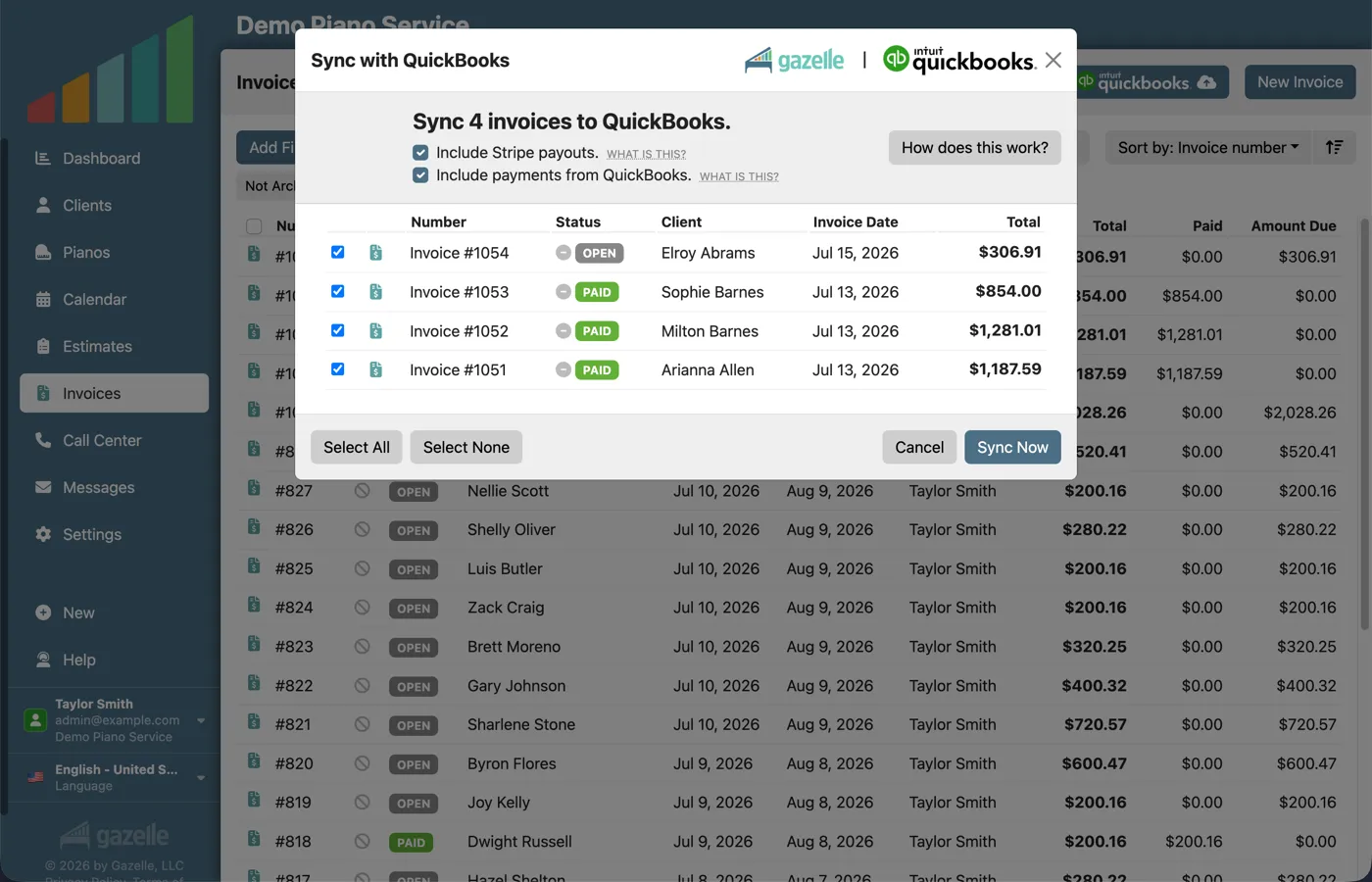
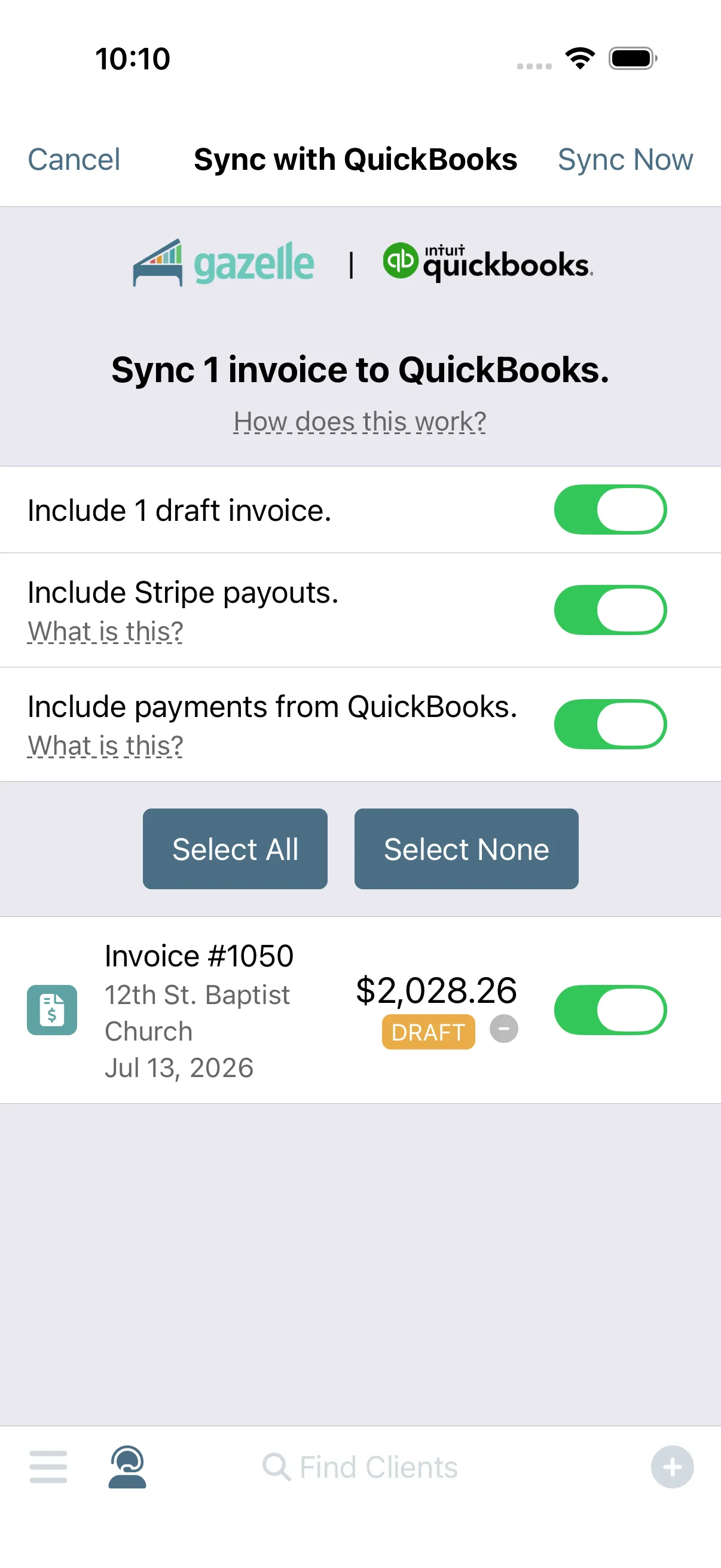
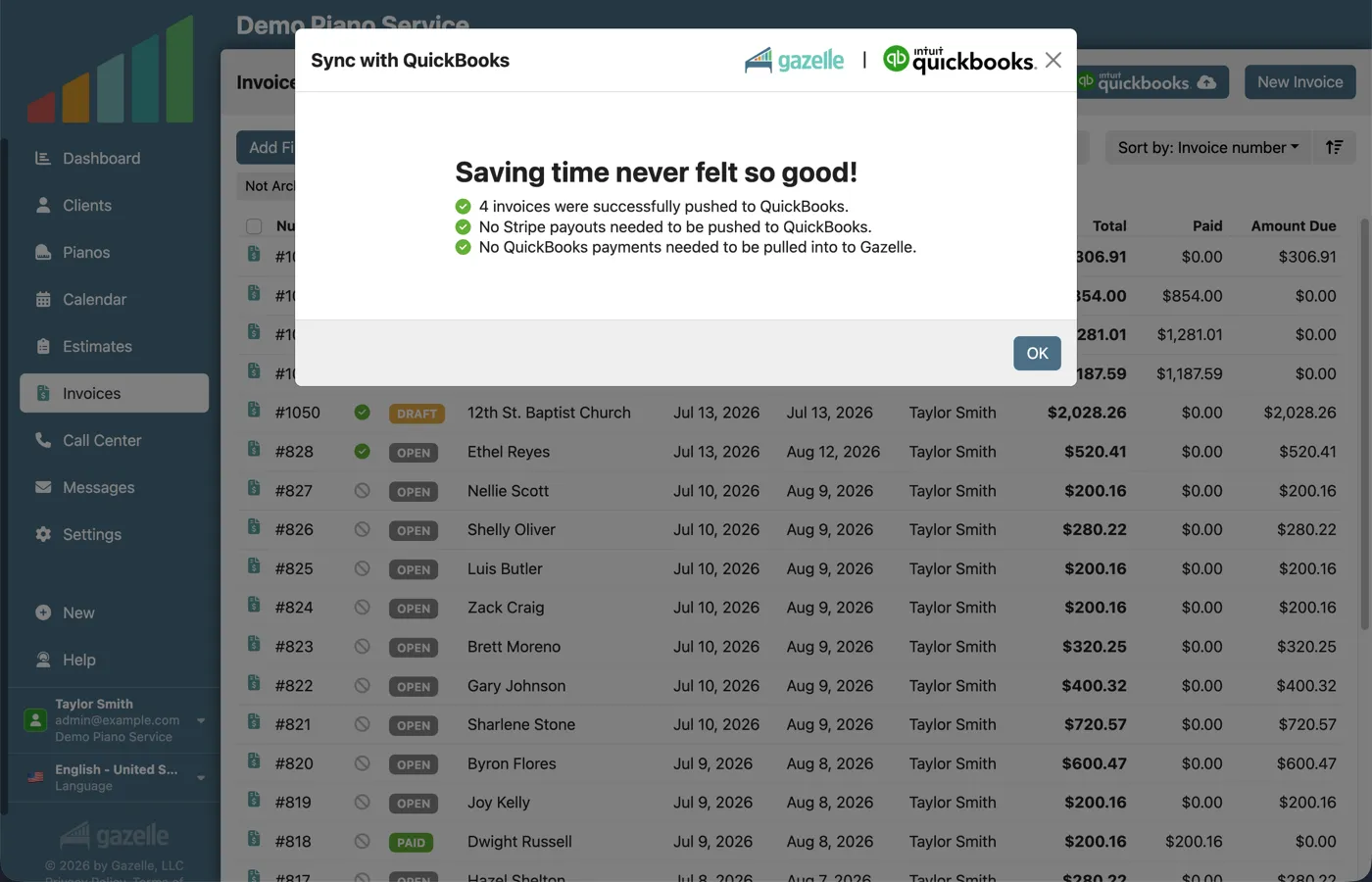
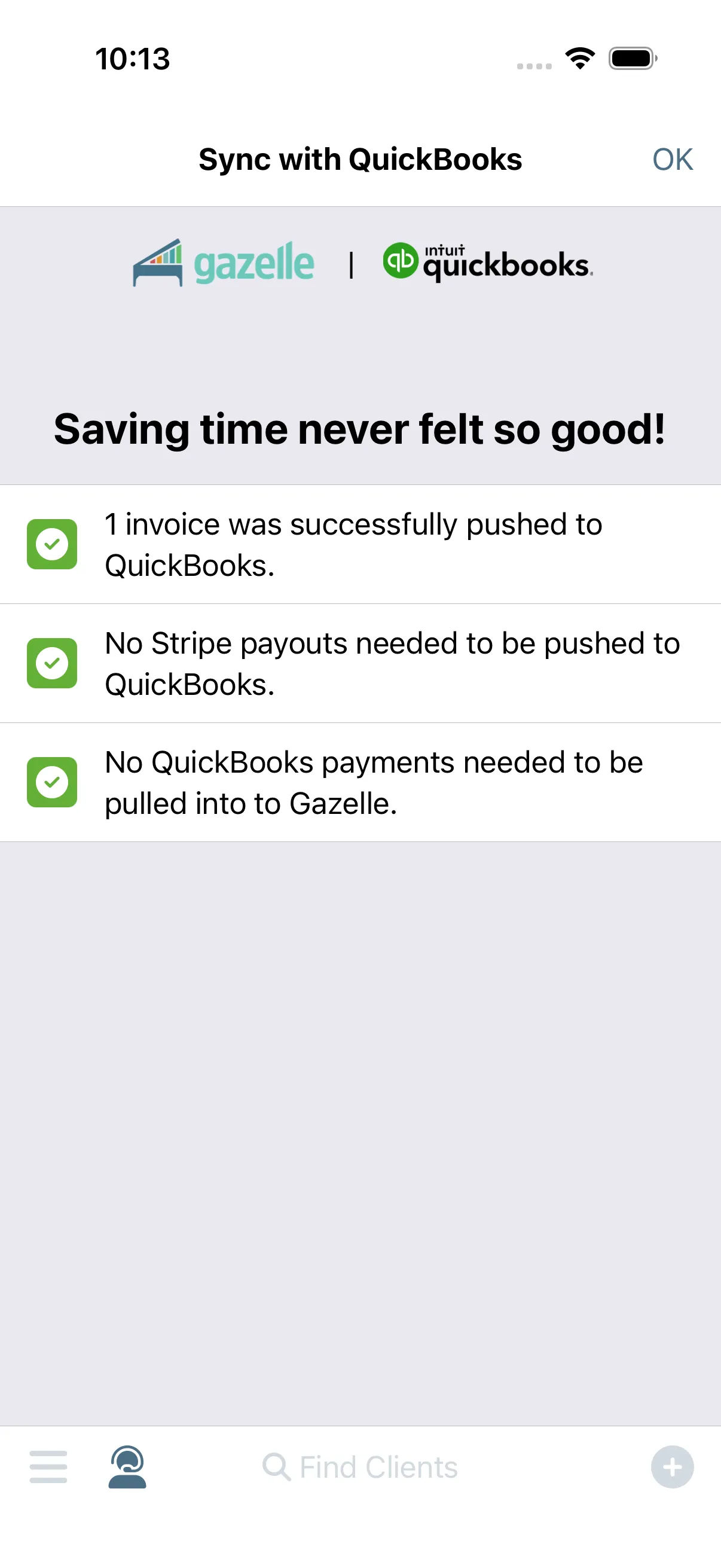
Double entry ends here. Gazelle pushes your invoices and payments to QuickBooks Online in two clicks, with every tax mapped to the right QuickBooks rate. No duplicates: if an invoice changes in Gazelle, the next sync updates it in place.
Accounting Integrations
-
Payouts, properly recorded.
One deposit at the bank can be several things at once: a Stripe payout bundles payments, refunds, and fees into a single number. Gazelle unpacks it, associates each payment and each fee with its invoice, and records the payout in QuickBooks as an itemized deposit with processing fees broken out on their own line. The number in QuickBooks matches the number at the bank.
Accounting IntegrationsPayment Processing
-
Get notified.
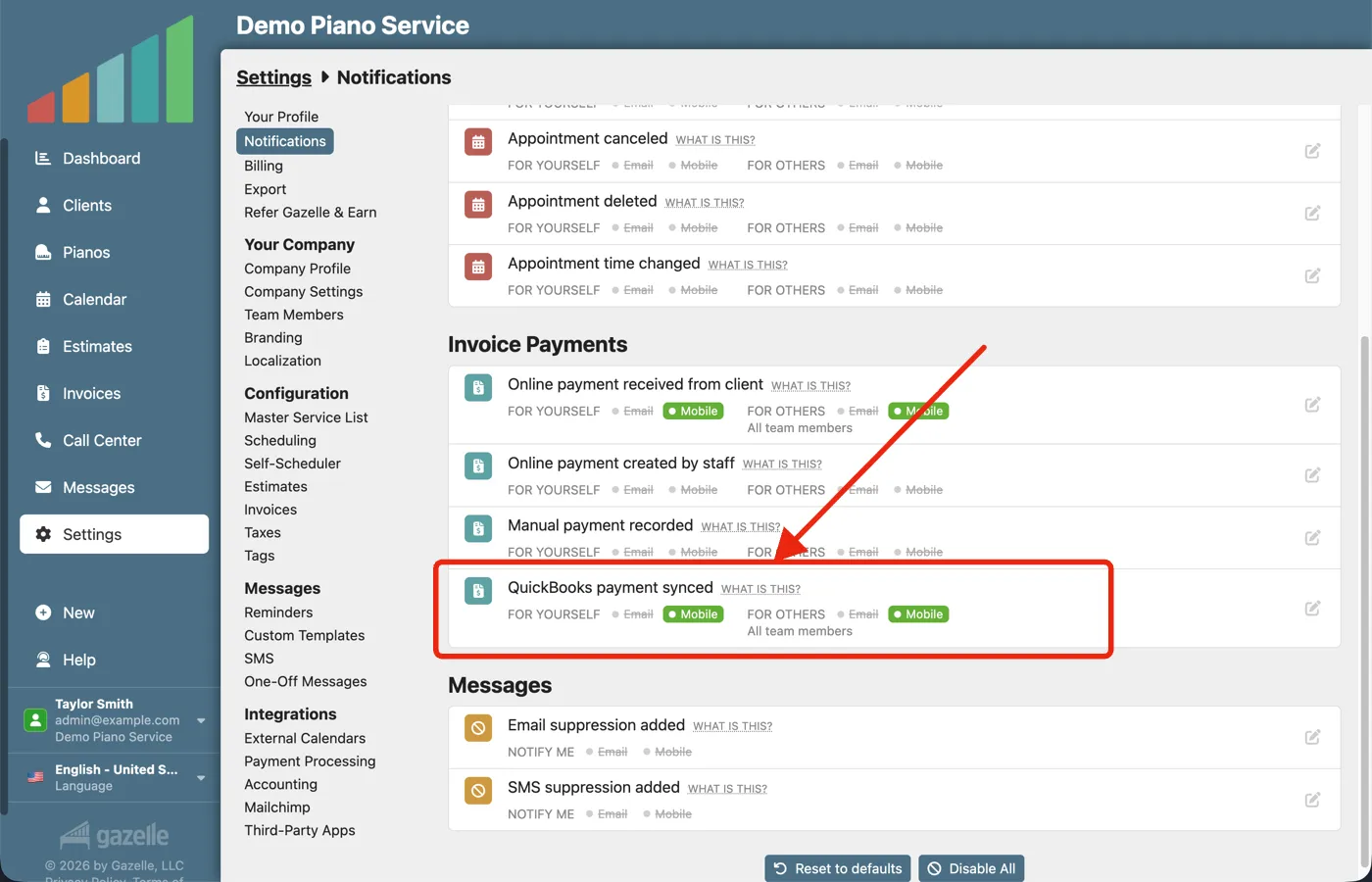
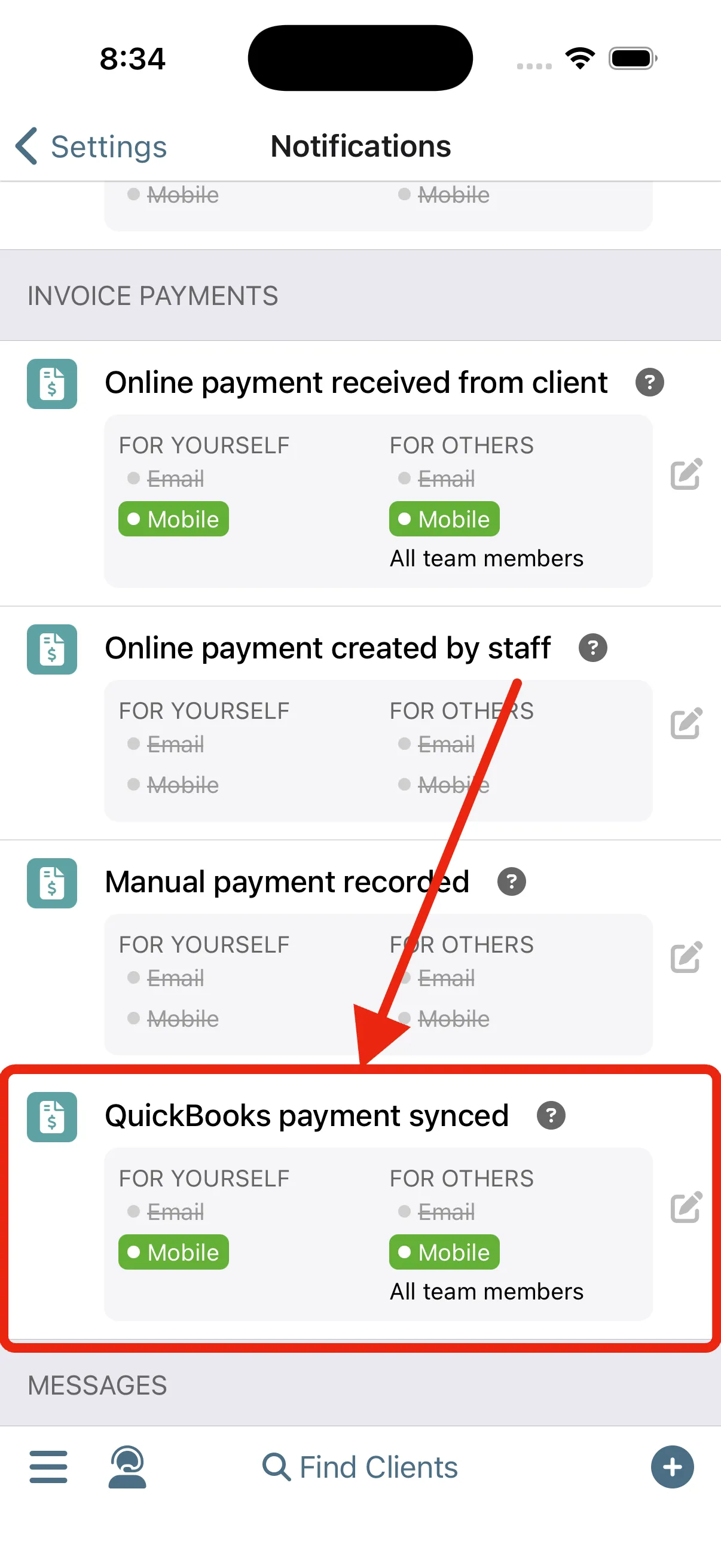
You don't have to go check that it worked. When a sync finishes with payments in it, Gazelle sends you a notification with the count. And when your accountant records a check directly in QuickBooks, you hear about it on the next sync, not at the end of the month.
NotificationsAccounting Integrations
Run this workflow on your own clients.
Every feature this workflow touches is included in your free trial. Free for 30 days, cancel anytime.
Features used in this workflow: InvoicingPayment ProcessingAccounting IntegrationsNotifications
Related workflows
One-Button Invoicing
The appointment becomes the invoice and the invoice becomes a payment, with nothing typed twice.
From Quote to Cash
Build good-better-best Options right at the piano, let the estimate do the selling, and the client books the work the moment they say yes.
Your Data Within Reach
One living record for every client and piano: history that writes itself, and the whole story on your screen before you knock.